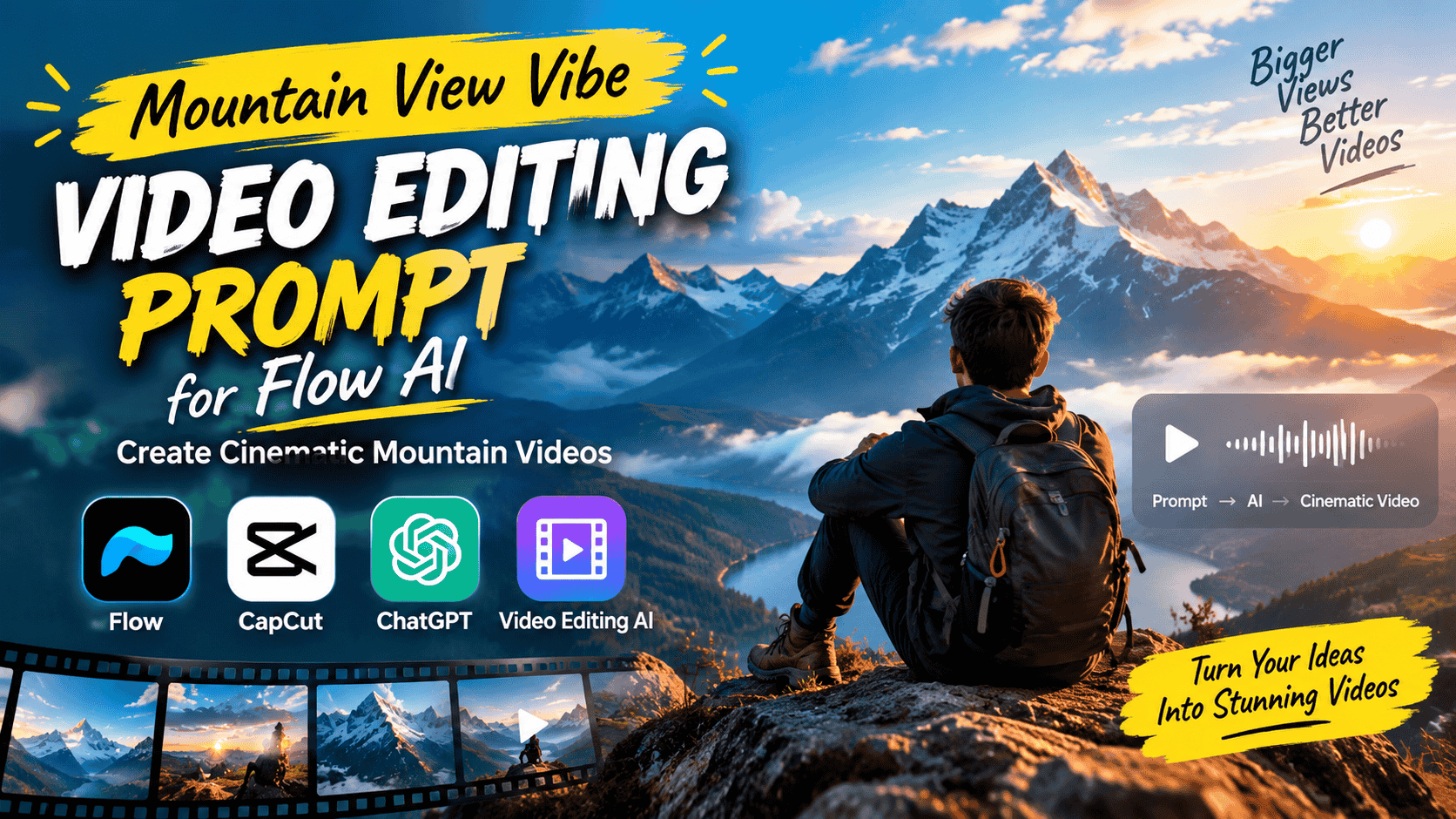
Featured image for: Mountain View Vibe Video Editing Prompt for Flow AI: Create Cinematic Mountain Videos
Mountain videos have a unique visual appeal. Wide landscapes, dramatic peaks, clouds moving across the sky, winding roads, green valleys and natural sunlight can instantly make a simple video feel cinematic.
But creating this type of video traditionally requires the right location, camera equipment, weather conditions and professional editing.
AI video tools have changed that process.
With a detailed Mountain View Vibe Video Editing Prompt, you can transform a simple photo or video into a cinematic mountain-style scene while controlling the environment, camera movement, lighting, subject motion and overall mood.
In this guide, you'll find a ready-to-use Flow AI video prompt, instructions for using it with a reference image or video, camera movement ideas, editing tips and ways to refine the final result using tools such as VN, CapCut and Adobe Premiere.
The goal is simple: create a realistic mountain-view video that feels like it was recorded during a professional travel shoot rather than looking like an artificial AI animation.
What Is a Mountain View Vibe Video Editing Prompt?
A Mountain View Vibe video editing prompt is a detailed instruction that tells an AI video generator how to create a specific mountain-themed visual.
Instead of simply writing:
"Create a mountain video."
you can describe:
Mountain environment
Weather
Sky
Lighting
Camera movement
Subject movement
Clothing
Landscape
Depth
Cinematic style
Realism
Color grading
Video duration
Aspect ratio
This gives the AI a much clearer understanding of the result you want.
For example, a travel creator can upload a photo of themselves and use a prompt that places them naturally in a beautiful mountain environment while maintaining their recognizable appearance.
Why Mountain AI Videos Are Popular
Mountain visuals work particularly well for short-form content because they immediately communicate travel, freedom, adventure and nature.
Complete Step-by-Step Editing Workflow
Copy the prompt: Use the dedicated copy button above to get the prompt.
Open your editing tool: Use your preferred AI image generator (ChatGPT, Google Gemini, Midjourney, or Bing).
Personalize the variables: Adjust background, clothing, lighting, pose, or mood according to your requirements.
Generate & refine: Generate the image and tweak small details if needed.
Export: Save the final high-quality output for your social media.
Article Tags
#ai video#video propmts#viral video#chagpt#flowai
Found this prompt useful?
SHARE:
Sana
Verified Creator
Curates practical AI prompts, photo-editing resources, video-editing ideas, and creator-focused tutorials to help readers create top-quality digital content.
Super helpful prompt! The lighting and peacock feather crown came out incredible on Bing Image Creator.
Priya PatelAugust 31, 2026
Thank you PromptCopyAI! Shared this with all my photo editing groups.
A mountain video can be used for:
Instagram Reels
YouTube Shorts
Travel videos
Facebook Reels
Tourism content
Personal travel edits
Cinematic status videos
AI-generated travel concepts
Music videos
Background footage
Promotional videos
The same basic prompt can also be customized for different environments.
For example:
Himalayan mountain vibe
Snow-covered mountain vibe
Green valley vibe
Sunset mountain vibe
Mountain road cinematic vibe
Cloudy hill-station vibe
Best Mountain View Vibe Prompt for Flow AI
Below is a ready-to-use prompt that can be adapted for an AI video workflow.
Copy-Paste Flow AI Video Prompt
Use the uploaded image or video as the primary reference for the subject. Preserve the subject's identity, facial features, hairstyle, skin tone, body proportions and clothing consistently throughout the video. Transform the environment into a breathtaking cinematic mountain landscape while keeping the subject naturally integrated into the scene. Create a realistic mountain-view travel video with enormous green mountains, distant peaks, a wide open valley, soft moving clouds and a natural blue sky. Add subtle atmospheric depth between the foreground, middle ground and distant mountains. The environment should look like a real location captured with a professional camera. Begin with a wide establishing shot showing the subject naturally surrounded by the mountain landscape. Slowly move the camera forward with a smooth cinematic dolly movement. Gradually reveal more of the mountain valley while keeping the subject naturally positioned within the frame. Add subtle natural wind movement to the person's hair and clothing without changing their appearance. Use realistic daylight coming from one consistent direction. Create natural shadows on the subject and surrounding landscape. Add realistic sunlight, atmospheric haze and detailed mountain textures. The sky should contain naturally moving clouds with realistic depth and scale. The camera movement should be smooth, slow and cinematic, similar to professional travel filmmaking. Use realistic depth of field, natural motion blur, authentic lens characteristics and subtle cinematic color grading. Preserve realistic skin texture and avoid artificial facial changes. The final result should look like real live-action travel footage captured in a beautiful mountain location. No cartoon appearance, no CGI look, no plastic skin, no distorted face, no body deformation, no unnatural movement, no warped landscape, no floating objects, no excessive saturation, no artificial-looking clouds and no text or watermark.
Mountain Sunset Version
If you want a more dramatic sunset result, use this variation:
Transform the uploaded reference into a cinematic mountain sunset video. Preserve the subject's exact identity, facial features, hairstyle, skin tone, body proportions and clothing. Place the subject naturally in a beautiful mountain valley surrounded by layered peaks. The sun is setting behind distant mountains, producing warm golden-hour light across the landscape. Use realistic orange and golden highlights with soft natural shadows. Clouds slowly move through the sky while subtle wind moves the subject's clothing and hair. Start with a wide shot showing the subject and complete mountain landscape. Slowly perform a cinematic camera push-in while maintaining natural perspective. End with a beautiful medium-wide composition showing the subject against the glowing mountain background. Photorealistic live-action travel footage, realistic atmospheric depth, natural skin texture, realistic lighting, subtle lens characteristics, cinematic color grading and smooth camera motion. No CGI appearance, no face change, no distorted body, no artificial landscape and no excessive color grading.
Snow Mountain Version
For winter travel content:
Create a photorealistic cinematic video using the uploaded reference image. Preserve the subject's exact facial identity, hairstyle, skin tone, clothing and natural proportions. Place the subject in a breathtaking snow-covered mountain environment with realistic snowy peaks, a natural cloudy sky and subtle atmospheric mist. Begin with a wide establishing shot showing the subject surrounded by the snow-covered landscape. Slowly move the camera sideways and forward while maintaining realistic perspective. Add subtle cold wind movement to the subject's clothing and hair. Snow should remain physically consistent with the environment. Use natural winter daylight, realistic shadows, detailed snow texture, authentic mountain atmosphere and cinematic travel-film color grading. Maintain realistic human movement and photorealistic live-action appearance. No artificial face, no CGI, no distorted mountains, no excessive snow effects and no unrealistic movement.
Mountain Road Cinematic Prompt
Mountain roads are particularly effective for cinematic travel videos.
Create a realistic cinematic travel video using the uploaded reference. Preserve the person's exact identity and appearance. Place the subject beside a winding mountain road surrounded by tall green mountains and a deep valley. Start with a wide landscape shot showing the complete road, surrounding mountains and subject. Slowly track the camera forward along the road while maintaining natural perspective. Add subtle movement to trees, grass and clothing from a realistic mountain breeze. Use natural daylight, realistic road textures, atmospheric mountain haze and professional travel cinematography. Maintain accurate depth, perspective and natural colors. The final video should look like genuine footage captured on a professional camera.
How to Use the Mountain View Prompt in Flow AI
Creating the video is easier when you follow a structured workflow.
Step 1: Choose Your Reference
Start with a high-quality photo or video.
For a personal travel-style video, choose an image where:
Your face is clearly visible
Your body is reasonably visible
Lighting is natural
The image isn't heavily filtered
Clothing is clearly visible
The background doesn't contain too much visual clutter
A clear reference gives the AI more information about the subject.
Step 2: Decide the Mountain Vibe
Before generating, decide what type of mountain environment you want.
Green Mountains
Best for summer and monsoon travel content.
Snow Mountains
Suitable for winter and adventure content.
Sunset Mountains
Useful for cinematic and emotional reels.
Foggy Mountains
Good for mysterious and atmospheric videos.
Mountain Road
Ideal for travel and automobile content.
Valley View
Works well for wide cinematic landscapes.
Step 3: Upload Your Reference
Add your image or video to the supported reference input.
If you're using a personal photograph, clearly tell the AI that the reference should control the subject's identity.
A useful instruction is:
Preserve the exact identity and recognizable facial features of the uploaded reference.
This helps make the purpose of the reference clear.
Step 4: Paste the Prompt
Copy the Mountain View Vibe prompt from this article and paste it into your AI video workflow.
Don't remove the important sections unless you have a specific reason.
A vertical composition works particularly well when the subject is standing in front of a tall mountain landscape.
For YouTube travel videos or website banners, consider:
16:9
Step 6: Generate the First Version
Don't try to make the first generation perfect.
Look at:
Face consistency
Mountain realism
Camera movement
Subject position
Lighting
Background depth
Clothing consistency
Then refine the prompt.
Step 7: Fix Common Problems
If the face changes
Add:
Do not reinterpret or redesign the subject's face. Preserve the exact facial identity from the reference.
If the background looks fake
Add:
Create a physically realistic mountain environment with natural atmospheric perspective and real-world landscape textures.
If the camera moves too quickly
Add:
Use extremely smooth, slow cinematic camera movement with no sudden transitions.
If the subject moves unnaturally
Add:
Use subtle, realistic human movement and maintain natural body proportions throughout the video.
If the mountains look distorted
Add:
Maintain stable mountain geometry and realistic landscape perspective throughout the entire shot.
Best Camera Movements for Mountain Videos
Camera movement can dramatically change the final result.
Camera Movement
Effect
Slow Push-In
Emotional cinematic feeling
Side Tracking
Shows landscape depth
Camera Pull-Back
Reveals huge mountain scenery
Tilt Up
Emphasizes mountain height
Pan
Shows wider landscape
Orbit
Dynamic subject presentation
Drone-Style Rise
Large landscape reveal
Static Wide Shot
Calm travel aesthetic
For a beginner-friendly prompt, slow push-in + wide establishing shot is a good combination.
How to Create a Drone-Style Mountain Reveal
You can add this instruction:
Start close to the subject and slowly pull the camera backward and upward, revealing the enormous mountain valley behind them. Maintain realistic camera physics and natural perspective. Keep the subject correctly anchored to the environment as the camera rises.
This creates the feeling of a professional aerial travel shot without requiring an actual drone recording.
Add Natural Mountain Details
A mountain scene becomes more convincing when the environment has small movements.
You can add:
Grass moving in the wind
Leaves moving naturally
Clouds slowly drifting
Light atmospheric haze
Distant birds
Sunlight changing subtly
Hair moving gently
Clothing responding to wind
Natural shadows
Distant mountain layers
However, avoid adding too many effects.
Realism usually benefits from subtle movement rather than constant movement.
Mountain Video Editing After AI Generation
AI generation is only one part of the process. You can further polish the result with traditional editing software.
For quick mobile editing, VN and CapCut can be useful for:
Cutting clips
Adding music
Adjusting speed
Adding transitions
Adding subtitles
Applying basic color adjustments
Creating vertical Reels
For more advanced desktop editing, Adobe Premiere can be used for:
Professional timeline editing
Color correction
Audio mixing
Masking
Keyframes
Multi-layer compositions
Advanced transitions
For PromptReplica's internal SEO structure, link the keywords VN Video Editor, CapCut Video Editing and Adobe Premiere to your relevant tutorials or software-related pages.
Suggested Editing Workflow
After generating your AI clip:
1. Import the video
Bring the generated clip into your editor.
2. Trim unnecessary frames
Remove awkward starting or ending frames.
3. Adjust speed
A slight slowdown can make landscape footage feel more cinematic.
4. Add music
Choose music that matches the mountain atmosphere.
5. Adjust color
Keep the mountain colors natural rather than heavily saturated.
6. Add a subtle transition
If you're combining multiple clips, use simple transitions.
7. Export
For social media:
1080 × 1920 — 9:16
For landscape:
1920 × 1080 — 16:9
Mountain Video Color-Grading Tips
A common mistake is making AI travel videos extremely saturated.
Instead, aim for:
Natural greens
Realistic blue sky
Soft highlights
Controlled contrast
Natural skin tones
Slight atmospheric haze
Balanced shadows
For sunset videos, warm tones can be increased slightly, but skin should remain natural.
Mountain AI Video Prompt Formula
You can create your own prompts using this formula:
Reference + Subject + Mountain Environment + Camera Movement + Lighting + Natural Motion + Cinematic Style + Realism
For example:
Uploaded portrait + person standing naturally + green Himalayan valley + slow camera pull-back + golden-hour sunlight + moving grass and clouds + cinematic travel footage + photorealistic live-action.
This formula can be reused for many travel-video concepts.
Mountain Vibe Prompt Ideas for Future Videos
Once you have created the basic mountain prompt, you can create an entire collection.
Prompt Idea
Video Style
Mountain Sunset Vibe
Golden hour
Snow Mountain Vibe
Winter
Green Valley Vibe
Nature
Foggy Mountain Vibe
Atmospheric
Mountain Road Vibe
Travel
Waterfall Mountain Vibe
Adventure
Mountain Sunrise Vibe
Peaceful
Camping Mountain Vibe
Outdoor
Luxury Mountain Resort
Premium travel
Mountain Car Drive
Automotive
Couple Mountain Vibe
Romantic
Mountain Drone Reveal
Aerial cinematic
This also gives you opportunities to create related AI Video Prompts and build internal links between articles.
Common Mistakes to Avoid
1. Using a Poor Reference Image
A blurry or heavily filtered reference can make identity consistency more difficult.
2. Giving Too Many Actions
Don't ask the subject to walk, run, turn, dance and interact with multiple objects in one short clip.
Start with one primary action.
3. Overusing Camera Movement
Too much camera movement can make the video feel artificial.
4. Over-Saturating the Landscape
Real mountain footage usually contains natural variations rather than extremely bright colors.
5. Ignoring Perspective
The subject must appear physically connected to the ground.
6. Forgetting Negative Instructions
If the generator supports negative prompts, use them to reduce common visual problems.
Negative Prompt
You can add the following negative instructions when supported:
low quality, blurry face, face distortion, identity change, different person, deformed body, extra fingers, extra limbs, unnatural hands, warped mountains, distorted landscape, artificial clouds, CGI, 3D render, cartoon, plastic skin, unrealistic lighting, excessive saturation, unrealistic camera movement, floating subject, duplicate person, unnatural shadows, flickering, frame inconsistency, excessive motion blur, text, watermark
Frequently Asked Questions
What is a Mountain View Vibe Video Editing Prompt?
It is a detailed AI instruction for creating a cinematic mountain-themed video with realistic landscapes, camera movement, lighting and subject motion.
Can I use my own photo?
Yes. If your chosen AI video tool supports image references, you can use your own photograph as the subject reference.
Can I use this prompt with Flow AI?
Yes, the prompt is structured for a Flow AI video-generation workflow and can be adapted according to the controls available in your setup.
Can I create a mountain video from one photo?
Yes. An image-to-video workflow can animate a still photograph and create camera movement and environmental motion.
How do I keep my face consistent?
Use a clear reference image and explicitly instruct the AI to preserve facial identity, facial structure, hairstyle, skin tone and body proportions.
Can I make a 9:16 mountain Reel?
Yes. Use a vertical 9:16 composition for Instagram Reels, YouTube Shorts and similar short-form platforms.
Can I create a sunset mountain video?
Yes. Add golden-hour lighting, warm sunlight, long natural shadows and subtle atmospheric haze to the prompt.
Can I edit the generated video in CapCut?
Yes. You can use CapCut Video Editing for trimming, music, transitions, text and other post-production tasks.
Can I use VN for the final edit?
Yes. VN Video Editor can be used for mobile editing, trimming, transitions, music and basic adjustments.
Can Adobe Premiere be used for AI video editing?
Yes. Adobe Premiere can be used for more advanced post-production, including timeline editing, color correction, audio and effects.
Conclusion
A great mountain video isn't only about having beautiful mountains in the background. The camera movement, lighting, subject placement, environmental motion and perspective all contribute to whether the final result feels realistic.
The Mountain View Vibe prompt in this guide is designed to give an AI video generator clear instructions for creating a cinematic travel-style scene.
For the most realistic result, start with a clean reference image, choose one primary action and use a controlled camera movement. A slow push-in, pull-back or wide landscape reveal can create a strong cinematic effect without making the video unnecessarily complicated.
After generating the clip, you can polish it using VN Video Editor, CapCut Video Editing or Adobe Premiere, depending on how advanced your editing workflow needs to be.
You can also customize the same prompt for snow-covered mountains, green valleys, sunset landscapes, foggy hills, mountain roads and luxury travel scenes.
The key is to treat the AI prompt like a creative production brief: clearly explain what should appear, how it should move, how the camera should behave and what must remain consistent.
With the right prompt and a little refinement, a simple reference image can become a cinematic mountain-view video suitable for Reels, Shorts, travel content and social media.
All Latest Viral AI Prompts: Copy-Paste Prompts in One Click