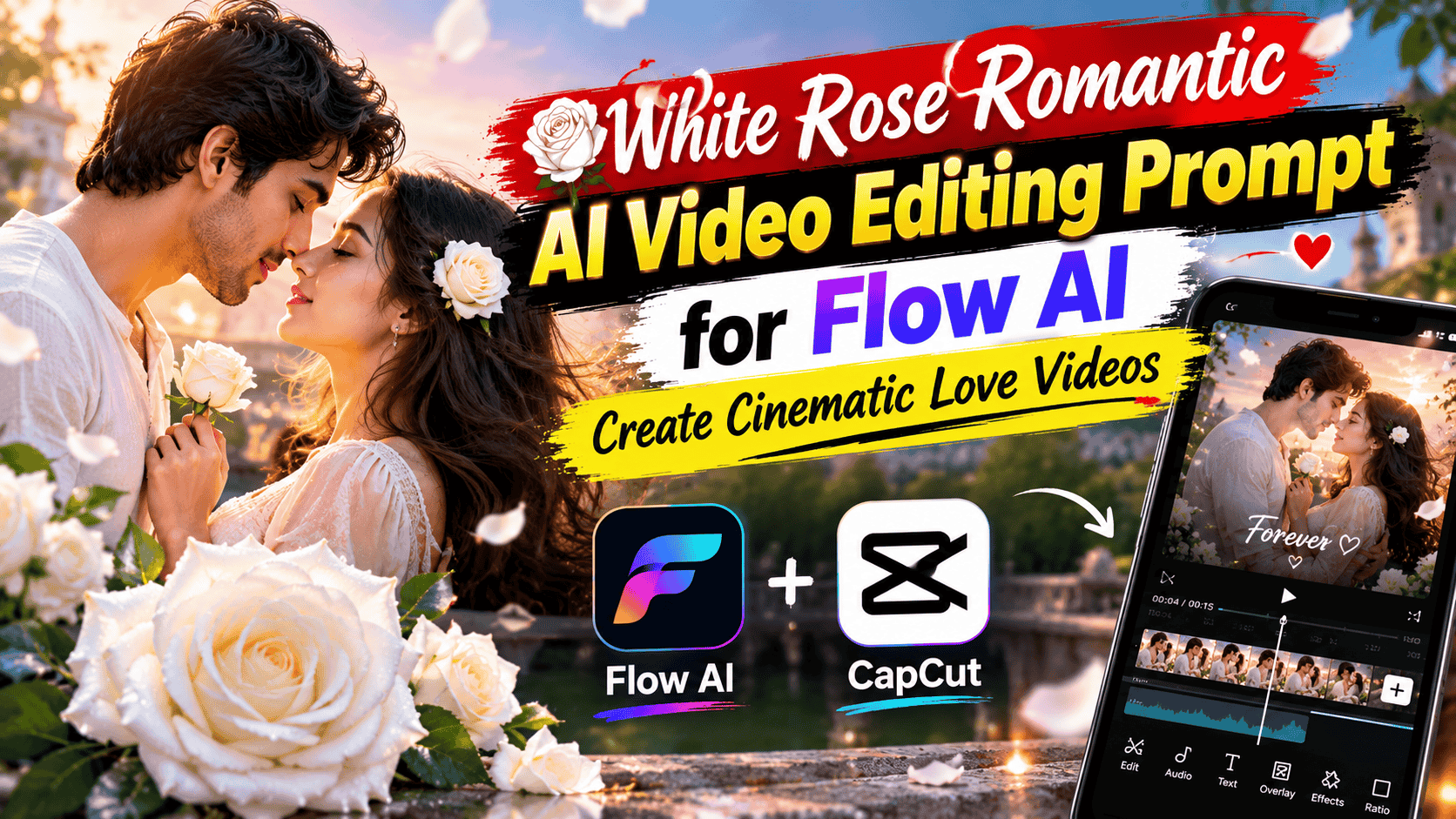
Featured image for: White Rose Romantic AI Video Editing Prompt for Flow AI: Create Cinematic Love Videos
Romantic videos often depend on small visual details. A soft smile, a gentle breeze, warm sunlight and a single white rose can completely change the mood of a scene.
With AI video generation, these elements can now be combined into a cinematic romantic video using a simple reference image and a well-written prompt.
The White Rose Romantic AI Video Editing Prompt for Flow AI is designed for creators who want to create an elegant love-themed video featuring a white rose, natural human movement, soft cinematic lighting and a realistic environment.
Instead of creating a complicated scene with too many actions, this prompt focuses on a simple romantic visual concept: a person holding or receiving a beautiful white rose in a cinematic setting.
This makes the concept suitable for:
Instagram Reels
YouTube Shorts
Romantic status videos
Couple videos
AI-generated love stories
Wedding concepts
Valentine's Day content
Cinematic photography videos
Social media edits
AI video experiments
In this guide, you'll get ready-to-use prompts, different romantic variations, a step-by-step workflow, camera ideas, negative prompts and post-production tips using VN, CapCut and Adobe Premiere.
What Is a White Rose Romantic AI Video Editing Prompt?
A White Rose Romantic AI Video Editing Prompt is a detailed instruction that tells an AI video generator how to create a romantic scene centered around a white rose.
The white rose can be used as:
A romantic gift
A visual symbol
A handheld flower
A bouquet
A foreground element
A close-up cinematic detail
Part of a couple interaction
Instead of simply telling the AI:
"Create a romantic video with a white rose."
you can describe the complete scene.
For example:
"Create a cinematic romantic scene where the subject gently holds a single white rose while standing in a softly lit garden during golden hour."
Complete Step-by-Step Editing Workflow
Copy the prompt: Use the dedicated copy button above to get the prompt.
Open your editing tool: Use your preferred AI image generator (ChatGPT, Google Gemini, Midjourney, or Bing).
Personalize the variables: Adjust background, clothing, lighting, pose, or mood according to your requirements.
Generate & refine: Generate the image and tweak small details if needed.
Export: Save the final high-quality output for your social media.
Article Tags
#ai video#video prompts#flowai#chatgpt#capcut
Found this prompt useful?
SHARE:
Sana
Verified Creator
Curates practical AI prompts, photo-editing resources, video-editing ideas, and creator-focused tutorials to help readers create top-quality digital content.
Super helpful prompt! The lighting and peacock feather crown came out incredible on Bing Image Creator.
Priya PatelAugust 31, 2026
Thank you PromptCopyAI! Shared this with all my photo editing groups.
The more clearly you describe the scene, camera and movement, the easier it becomes to control the final visual style.
Why White Rose Videos Work So Well for Romantic Content
The white rose provides a simple visual focal point.
It can communicate elegance and romance without making the scene visually complicated.
A white rose can work particularly well with:
Soft sunlight
Sunset
Candlelight
Garden environments
Rain
Wedding scenes
Couple portraits
Luxury locations
Beach environments
Minimal backgrounds
Because the flower has a light color, it can also stand out naturally against darker or green backgrounds.
Best White Rose Romantic AI Video Prompt for Flow AI
Below is the main copy-paste prompt for this article.
Copy-Paste Flow AI Video Prompt
Use the uploaded image or video as the primary reference for the subject. Preserve the subject's exact identity, facial features, hairstyle, skin tone, body proportions and clothing throughout the entire video. Do not change the person's recognizable appearance. Create a beautiful cinematic romantic scene in which the subject naturally holds a single elegant white rose. The rose should have realistic petals, natural texture and believable proportions. The subject gently looks at the white rose and then slowly looks toward the camera with a subtle, natural romantic expression. Place the subject in a beautiful outdoor garden during golden hour. Surround the scene with soft green foliage, delicate flowers and a warm natural background. Use shallow depth of field so the background becomes softly blurred while the subject and white rose remain sharply detailed. Begin with a medium-wide cinematic shot showing the subject naturally standing in the romantic environment. Slowly move the camera forward with a smooth cinematic dolly-in. Gradually transition into a closer shot focusing on the subject and the white rose while maintaining realistic proportions and natural perspective. Add a gentle natural breeze that subtly moves the subject's hair, clothing and nearby leaves. Keep the movement realistic and restrained. The white rose should move naturally with the subject's hand without changing shape or becoming distorted. Use soft golden-hour sunlight coming consistently from one direction. Create realistic highlights on the face, hands and rose with natural shadows. Maintain realistic skin texture, natural facial details, accurate hands and physically believable lighting. The final result should look like professional live-action romantic cinematography rather than CGI or an AI animation. Use realistic camera optics, natural depth of field, subtle motion blur, cinematic color grading and realistic environmental details. No face change, no identity drift, no distorted hands, no extra fingers, no artificial skin, no CGI appearance, no warped flower, no text and no watermark.
White Rose Love Story Version
If you want the video to feel more like a short romantic scene, use this version.
Use the uploaded character reference as the exact identity reference. Preserve the person's facial identity, hairstyle, skin tone, facial structure and body proportions. Create a cinematic romantic scene in a peaceful garden during sunset. The subject stands naturally while holding a single fresh white rose. A gentle breeze moves the subject's hair and clothing. The subject looks at the white rose for a moment, smiles naturally and slowly looks toward the camera. The camera starts with a wide shot showing the beautiful garden and gradually moves closer to create an intimate cinematic composition. Use warm sunset lighting, realistic shadows, natural skin texture, detailed white rose petals and soft background bokeh. Keep the scene photorealistic and emotionally subtle. Avoid exaggerated expressions or artificial movements. Professional romantic-film cinematography, realistic live-action footage, natural camera movement, realistic lighting, shallow depth of field, subtle film grain and elegant cinematic color grading. No CGI, no face replacement, no distorted hands, no flower deformation, no artificial skin and no watermark.
White Rose Proposal Video Prompt
For a proposal-style scene:
Create a photorealistic romantic proposal scene using the uploaded reference image. Preserve the person's exact identity and recognizable facial features. The subject stands in a beautiful garden during golden hour holding a single elegant white rose. The subject slowly extends the white rose toward the camera as if offering it to someone special. Maintain realistic hand positioning and natural arm movement. The camera begins with a medium-wide shot and slowly moves closer to the rose and subject's face. Use warm natural sunlight, soft background bokeh, realistic flower texture, natural skin detail and cinematic depth of field. The atmosphere should feel intimate, elegant and genuine rather than exaggerated. Photorealistic live-action romantic cinematography, realistic movement, natural lighting, professional camera optics and subtle cinematic color grading. No CGI appearance, no face distortion, no extra fingers, no deformed hands, no flower morphing and no text.
White Rose Rain Romantic Prompt
Rain can create a completely different atmosphere.
Use the uploaded subject image as the exact identity reference. Preserve the person's face, hairstyle, skin tone, body proportions and clothing. Create a cinematic romantic scene during a gentle evening rain. The subject stands naturally holding a single white rose. Small realistic raindrops fall naturally around the subject while soft street and ambient lighting creates subtle reflections on the wet ground. The subject gently looks at the white rose and then toward the camera. Use a slow cinematic camera push-in, shallow depth of field, realistic wet surfaces, natural reflections and subtle atmospheric depth. Keep the white rose detailed and physically realistic. Photorealistic live-action appearance, natural human movement, realistic rain physics, realistic lighting and cinematic color grading. No artificial face, no distorted body, no excessive rain, no flower deformation, no CGI appearance and no watermark.
How to Use the White Rose Prompt in Flow AI
Creating the video becomes easier when you follow a consistent workflow.
Step 1: Select Your Reference Image
Start with a clear photograph of the person you want to use.
For better results:
Use a sharp image
Keep the face visible
Avoid extreme filters
Use natural lighting
Avoid heavily distorted photographs
Choose a photo where the body position is reasonably clear
A clean reference helps maintain identity throughout the video.
Step 2: Decide Your Romantic Scene
Choose the visual environment before generating.
You can create:
Garden Romance
Green foliage, flowers and golden-hour sunlight.
Sunset Romance
Warm sunlight and a soft cinematic background.
Rain Romance
Wet streets, soft lights and realistic rainfall.
Wedding Romance
Elegant venue, flowers and soft lighting.
Beach Romance
Ocean background and sunset.
Candlelight Romance
Warm indoor lighting and intimate atmosphere.
For this article, the main prompt uses a golden-hour garden because it provides a simple and visually clean environment.
Step 3: Upload Your Reference
Add your image to the supported image-reference input.
Then clearly tell the AI:
Use the uploaded image as the exact identity reference.
This establishes which visual information should remain consistent.
Step 4: Add the White Rose Prompt
Paste the main prompt into the AI video-generation workflow.
Make sure the prompt contains the important components:
Identity + Rose + Environment + Camera + Lighting + Movement + Realism
These elements work together to create a controlled scene.
Step 5: Choose the Video Ratio
For Instagram Reels and YouTube Shorts:
9:16 Vertical
This format works particularly well for romantic portrait videos because the subject and flower can remain prominent.
For YouTube landscape videos:
16:9
Use this when the environment and background are important parts of the composition.
Step 6: Generate the First Video
Generate the initial version and check:
Does the face remain consistent?
Does the rose look natural?
Are the hands realistic?
Is the camera movement smooth?
Does the lighting remain consistent?
Does the background remain stable?
Does the subject move naturally?
If something looks incorrect, refine only that part.
Step 7: Fix Face Changes
If the AI changes the person's face, add:
Preserve the exact facial identity from the reference image throughout every frame. Do not reinterpret, redesign or replace the face.
You can also reinforce:
Maintain the same facial structure, hairstyle, skin tone and recognizable features.
Step 8: Fix Flower Distortion
Flowers can sometimes change shape during AI video generation.
Add:
Keep the white rose as a single realistic flower with stable petal structure, natural proportions and consistent appearance throughout the video.
Avoid requesting too many flower movements.
A subtle breeze is enough.
Best Camera Movements for Romantic White Rose Videos
Camera Movement
Result
Slow Dolly-In
Intimate romantic feeling
Gentle Push-In
Focuses on face and rose
Side Tracking
More cinematic
Slow Pan
Reveals environment
Pull-Back
Reveals romantic location
Close-Up
Highlights rose and expression
Medium-Wide
Shows subject and environment
Static Shot
Calm and elegant
For the main concept, a slow dolly-in works particularly well.
White Rose Close-Up Prompt
If you want the flower to become the main visual focus:
Begin with a cinematic close-up of a single white rose held naturally in the subject's hand. Show realistic petal texture and subtle movement from a gentle breeze. Slowly rack focus from the white rose to the subject's face while maintaining natural depth of field and realistic camera optics. Preserve the person's exact facial identity and hand structure. Use warm golden-hour lighting, soft bokeh and photorealistic live-action cinematography.
This can be used as a separate short clip and combined with a wider shot.
How to Create a Romantic Multi-Shot Video
Instead of generating one complicated scene, you can create several short clips.
Shot 1 — Establishing Shot
Show the subject standing in the garden.
Shot 2 — White Rose Close-Up
Show the rose in the subject's hand.
Shot 3 — Face Shot
Camera slowly moves toward the subject.
Shot 4 — Romantic Wide Shot
Show the person and the complete environment.
Shot 5 — Final Close-Up
End with the subject looking toward the camera.
This approach gives you more control during editing.
Editing the AI Video
After generating your clips, you can combine them in a video editor.
For quick mobile editing, VN Video Editor and CapCut Video Editing can be useful.
You can use them to:
Trim clips
Add romantic music
Adjust speed
Add transitions
Add text
Apply basic color adjustments
Sync clips with music
For more advanced editing, Adobe Premiere can be used for:
Multi-track editing
Color correction
Audio mixing
Keyframes
Advanced transitions
Professional timeline editing
For internal linking, connect the keywords VN Video Editor, CapCut Video Editing and Adobe Premiere to your related tutorials or guides on PromptReplica.
Recommended Editing Workflow
1. Import the Generated Clips
Place all AI-generated clips into your editor.
2. Select the Strongest Frames
Remove clips with obvious AI artifacts.
3. Arrange the Story
A simple order can be:
Wide → Rose → Face → Wide → Close-up
4. Add Music
Use music that matches the romantic mood.
5. Adjust Speed
A slight slowdown can make the video feel more cinematic.
6. Apply Consistent Color
Keep the colors warm and natural.
7. Export
For Reels and Shorts:
1080 × 1920 — 9:16
For landscape:
1920 × 1080 — 16:9
Color-Grading Tips for Romantic Videos
The romantic mood doesn't require extreme filters.
Try maintaining:
Warm highlights
Natural skin tones
Soft contrast
Controlled saturation
Gentle shadows
Slightly warm white balance
The white rose should remain close to natural white.
Avoid making it heavily blue, yellow or overexposed.
How to Make the White Rose Stand Out
The rose should be visible without looking artificially bright.
You can create contrast using the background.
For example:
Green garden + white rose
creates natural visual separation.
You can also use:
Dark clothing + white rose
or:
Warm sunset + white flower
This makes the flower an obvious focal point.
Common Problems and Solutions
Problem 1: The Rose Changes Shape
Add:
Maintain one consistent white rose with stable realistic petals throughout the entire shot.
Problem 2: Hands Look Artificial
Add:
Use anatomically correct hands with natural finger placement and realistic interaction with the rose stem.
Problem 3: Face Changes
Add:
Preserve the exact identity of the reference subject throughout the entire video.
Problem 4: Video Looks Like CGI
Add:
Photorealistic live-action footage captured with a professional cinema camera, realistic optics and natural lighting.
Problem 5: Camera Moves Too Fast
Add:
Extremely smooth and slow cinematic camera movement with no sudden acceleration or rotation.
Problem 6: Background Flickers
Add:
Maintain a stable environment and consistent background geometry throughout the shot.
Negative Prompt
If your AI video tool supports negative instructions, use:
Once you create the basic version, you can build multiple variations.
Idea
Visual Style
White Rose Garden
Soft & elegant
White Rose Sunset
Warm & cinematic
White Rose Rain
Emotional
White Rose Proposal
Romantic
White Rose Wedding
Elegant
White Rose Beach
Dreamy
White Rose Candlelight
Intimate
White Rose Couple
Romantic
White Rose Night Scene
Cinematic
White Rose Music Video
Dramatic
These can also become individual AI Video Prompts articles and form a larger internal-linking cluster.
Tips for Better Flow AI Results
Keep the Main Action Simple
One or two actions are generally easier to control than a long sequence.
For example:
Hold rose → look at rose → look at camera
is easier to manage than:
Walk → pick flower → turn → run → sit → stand → throw rose.
Use Specific Camera Instructions
Instead of:
"Make it cinematic."
Try:
"Slow cinematic dolly-in from medium-wide to medium close-up."
Describe Realistic Movement
Use subtle movements:
Gentle breeze
Natural breathing
Slight head movement
Small facial expression
Natural hand movement
Avoid Excessive Effects
Romantic doesn't mean adding every possible visual effect.
Simple scenes often look more believable.
Frequently Asked Questions
What is a White Rose Romantic AI Video Prompt?
It is a detailed prompt designed to create a romantic AI video featuring a white rose, cinematic lighting, natural movement and a realistic environment.
Can I use my own photo?
Yes. If your video-generation tool supports image references, you can upload your own photograph and ask the AI to preserve your identity.
Can I use this prompt with Flow AI?
Yes. The prompt is designed around a Flow AI video workflow and can be adjusted according to the available generation and reference controls.
How do I keep my face unchanged?
Use a clear reference image and explicitly instruct the AI to preserve your facial identity, facial structure, hairstyle, skin tone and recognizable features.
How do I stop the rose from changing?
Tell the AI to maintain a single white rose with consistent petal structure, proportions and appearance throughout the clip.
Can I create a romantic proposal video?
Yes. The proposal variation above can be adapted for a rose-offering or proposal-style scene.
Can I make the video vertical?
Yes. Use 9:16 for Instagram Reels, YouTube Shorts and similar platforms.
Can I edit the generated video in CapCut?
Yes. CapCut Video Editing can be used to trim the clips, add music, transitions and other effects.
Can I use VN for this video?
Yes. VN Video Editor is suitable for mobile-based editing and can be used to combine AI-generated clips.
Can I use Adobe Premiere?
Yes. Adobe Premiere is suitable when you need more advanced editing, color correction, audio work and timeline control.
Conclusion
The White Rose Romantic AI Video Editing Prompt for Flow AI provides a simple way to create an elegant cinematic love-themed video without building a complicated scene.
The key is to keep the visual concept focused: one subject, one white rose, a beautiful environment, subtle movement and controlled cinematic camera work.
For better results, start with a clear reference image and explicitly preserve the subject's identity. Give the AI specific instructions for the rose, camera, lighting and environment instead of relying on a short generic description.
You can also create different versions using sunset, rain, garden, beach, wedding or candlelight settings.
Once your AI clips are generated, use VN Video Editor, CapCut Video Editing or Adobe Premiere to combine multiple shots, add music, adjust timing and create the final social-media video.
The same prompt structure can also be reused for other romantic concepts. Replace the white rose with a bouquet, gift, wedding flower or another visual element while keeping the core cinematic workflow unchanged.
A well-structured prompt doesn't need to make the scene complicated. It needs to clearly communicate what the viewer should see, how the subject should move, how the camera should move and what details must remain consistent.
All Latest Viral AI Prompts: Copy-Paste Prompts in One Click